How to Find the Review Link for Your Clinic on Google, Facebook, and Yelp
Make it easy to encourage your patients to leave reviews for your clinic by learning how to get the review links for your business listing on Google, Facebook, and Yelp.
A. Check Out Video Tutorial
B. Read Step-by-Step Instructions
How to Get Your Google My Business (GMB) Review Link
Before you read any further, be sure you create a GMB Listing for your clinic. They’re free to create and easy to do. Now, check out how to find your GMB review link:
 1. First, ensure you’ve signed into Google with the email you used to create your Google Business Profile. Then, just follow these steps: a. Click the 9 dots square on the top right corner of your Chrome browser. b. Click the Google Profile Manager option from the dropdown c. On the Google Profile Manager dashboard, look for ‘Ask for reviews’ option and click on it. |
3a. A popup will appear with your Google review link! Copy the provided link in the popup. b. Paste this Google review link into the Facility Settings > Facility > Review Plus section > "Google Review Link" box. Click Update once done. | 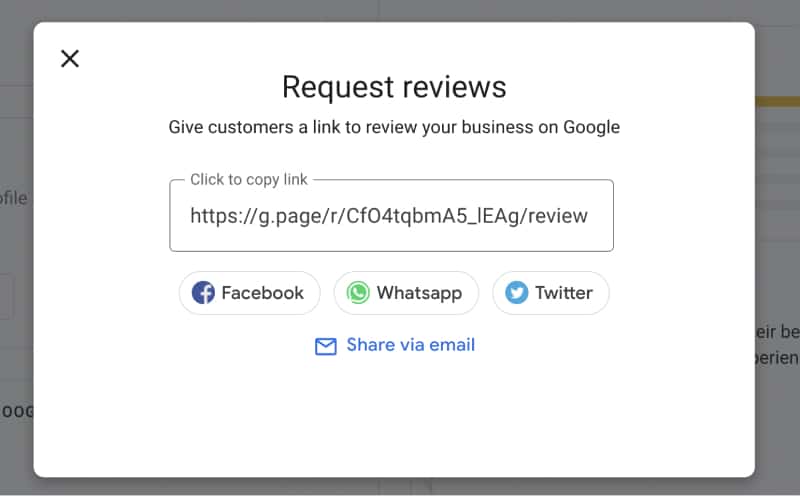 |

*Note: The URL you copy might be long. We recommend using a URL shortener to make it easier on the eyes and the characters, such as https://tinyurl.com/app, https://bitly.com/, and https://www.shorturl.at/.
Note that a customer must have a free Google account in order to leave you a Google review. However, with over 1.5 billion active users, this will most likely not be an issue!
Note that a customer must have a free Google account in order to leave you a Google review. However, with over 1.5 billion active users, this will most likely not be an issue!
How to Get Your Facebook Business Page Review Link
Facebook review links are the easiest to retrieve. Similar to Google reviews however, a customer must have a Facebook account in order to leave one.
Additionally, your business needs to have a business profile, and the ability to leave ratings and reviews switched on.
a. If you've already turned on the Reviews feature for your business page, here's how to find the review URL:
1. Open Facebook app. Search your business name on the top search box. Click on your Facebook business page name from the search results. On your Facebook Home page, you will find the "More" option with a dropdown menu. Click on the "Reviews" option. |
2. Once you're on the Reviews page, copy the URL from the address bar as shown here. a. To copy the URL, click Command + A and Command + C on MacBook or iMac. To copy the URL, click Cltr + A and Cltr + C on PC. This is the review link* for your business listing on Facebook. b. Paste this review link URL into the Facebook Review Link placeholder under Facility Settings > Facility > Review Plus section. Click Update once done. |
*Note: The URL you copy is long. We recommend using a URL shortener to make it easier on the eyes and the characters, such as https://tinyurl.com/app, https://bitly.com/, and https://www.shorturl.at/.b. If the Reviews feature is not turned for your business page, here's how to find review URL:
1. Login to your Facebook profile and go to your Facebook business page. On the left side panel, navigate to the ‘Settings’ section. |
2. On the Settings page, click on "Templates and Tabs". |
3. On the Templates and Tabs page, scroll down to the "Reviews" section. Toggle the button on to enable the Reviews feature for your Facebook page. The Reviews tab will appear on your page. |
4a. Now, go to the Facebook Home page. Search your business name again. Open your clinic's Facebook page. On the Home page of your profile, click on "More" to open the dropdown menu. Click on "Reviews" option as you have enabled it for your page. Copy the URL from the address bar. b. Paste this review link URL into the Facebook Review Link placeholder under zHealth Facility Settings > Facility > Review Plus section. Click Update once done. |
How to Get Your Yelp Review Link
Ensuring your business Yelp profile is filled out and active can only benefit you. Making it easy for customers to leave reviews with a handy link is one of the first steps to take. Just like the profiles before, generating your link is simple.
1. On your Chrome browser, type www.yelp.com. Search for your business name using the "Find" box on the homepage. Then, click the "Search" icon. Click the name of your business in the results list. |
2. Once your Yelp profile opens, click on the "Write a Review" link on the upper right side of the page. |
3a. A new window will open where users can write a review for your business. Copy the URL from the address bar. To copy the URL, click Command + A and Command + C on MacBook or iMac. To copy the URL, click Cltr + A and Cltr + C on PC. This is the review link* for your business listing on Yelp. b. Paste this review link URL into the Yelp Review Link placeholder under zHealth Facility Settings > Facility > Review Plus section. Click Update once done. |
*Note: The URL you copy is long. We recommend using a URL shortener to make it easier on the eyes and the characters, such as https://tinyurl.com/app, https://bitly.com/, and https://www.shorturl.at/.Paste Your Preferred Review Platform Link in zHealth Review Link Field
To complete the setup of zHealth Review Plus, the final step is to paste your preferred platform’s review link (Google, Yelp, or Facebook) into the “Review Link” box. Click Update once done. This is the link that will be automatically sent to patients through the review request SMS after their appointment. When patients receive the text message and click the review link, they will be redirected directly to your Google Business, Facebook, or Yelp review page, where they can quickly and easily leave their feedback. |